> ## Documentation Index
> Fetch the complete documentation index at: https://docs.agents.kolena.com/llms.txt
> Use this file to discover all available pages before exploring further.
# How Templates Work
> Save Agent Outputs to Custom Word, CSV, or Excel Templates
Agents can populate a custom **Word**, **Excel**, or **CSV** document.
Common examples include:
* A Lease Abstract Template
* A Financial Model (Speadsheet)
* A Reporting Template
When an Output Template is added to an Agent, the Agent will replace placeholders in the document with results from its Prompts.
All other styles, formatting, formulas, and macros in the document will be preserved.
## The Template System
Each Agent has three components:
1. **Input:** Where the Agent will look for source documents
2. **Prompts:** The instructions which the Agent will execute on the source documents
3. **Output:** Where Agent will put the results of its Prompts
We can insert the results of an Agent into an Output Template document.
Each Prompt has an associated placeholder which we can insert into the Output Template and then save to the Agent.
When the Agent completes a Run, placeholders are replaced with the results from that Prompt.
## Setting Up A Template
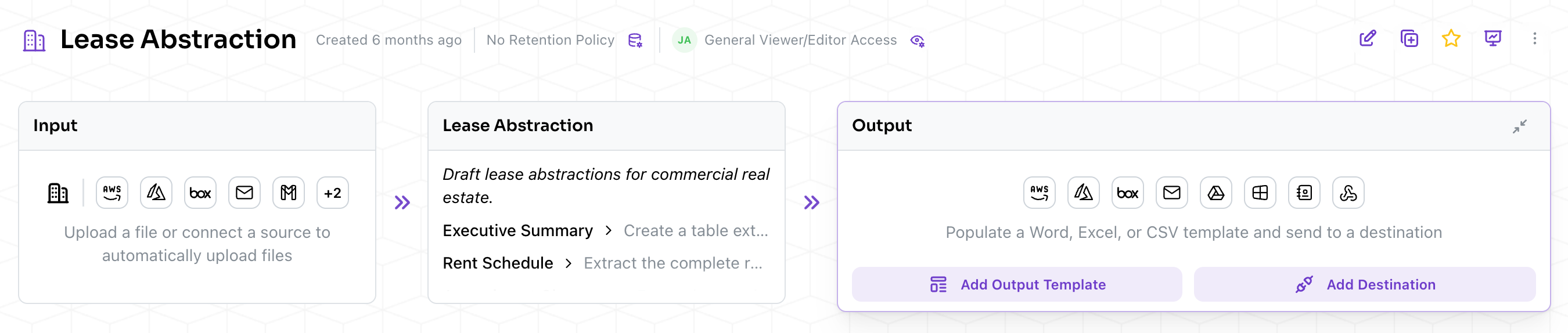
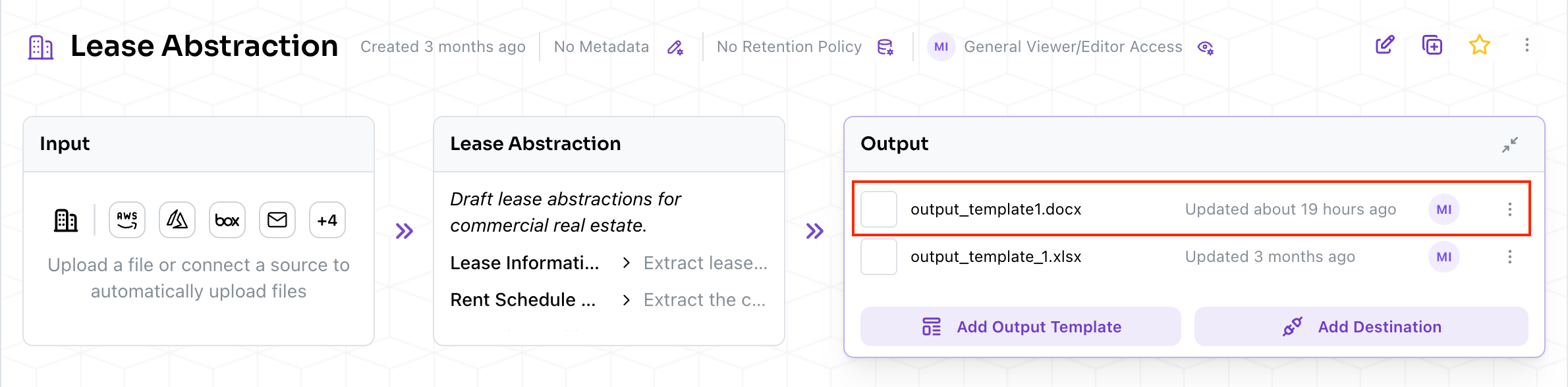
Starting your from Agent's main page, click "Add Output Template" in the "Output" box.
 Next, select the type of Output Template you would like to use.
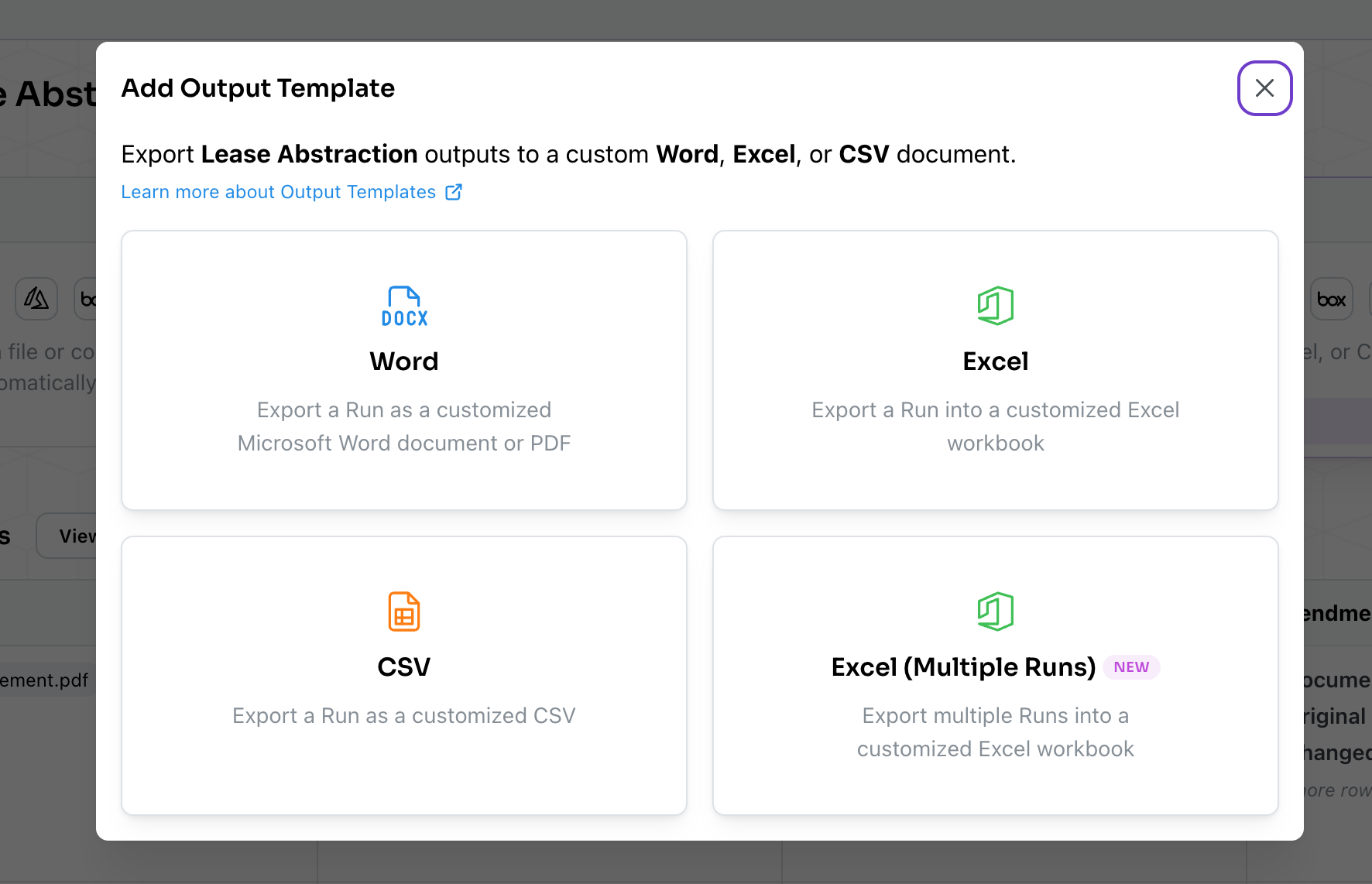 Four types of templates are supported:
* Word
* CSV
* Excel
* Excel Multple Runs
Excel Multiple Runs templates can use values from more than one Run in the same Output Template, while the other types use values from a single Run.
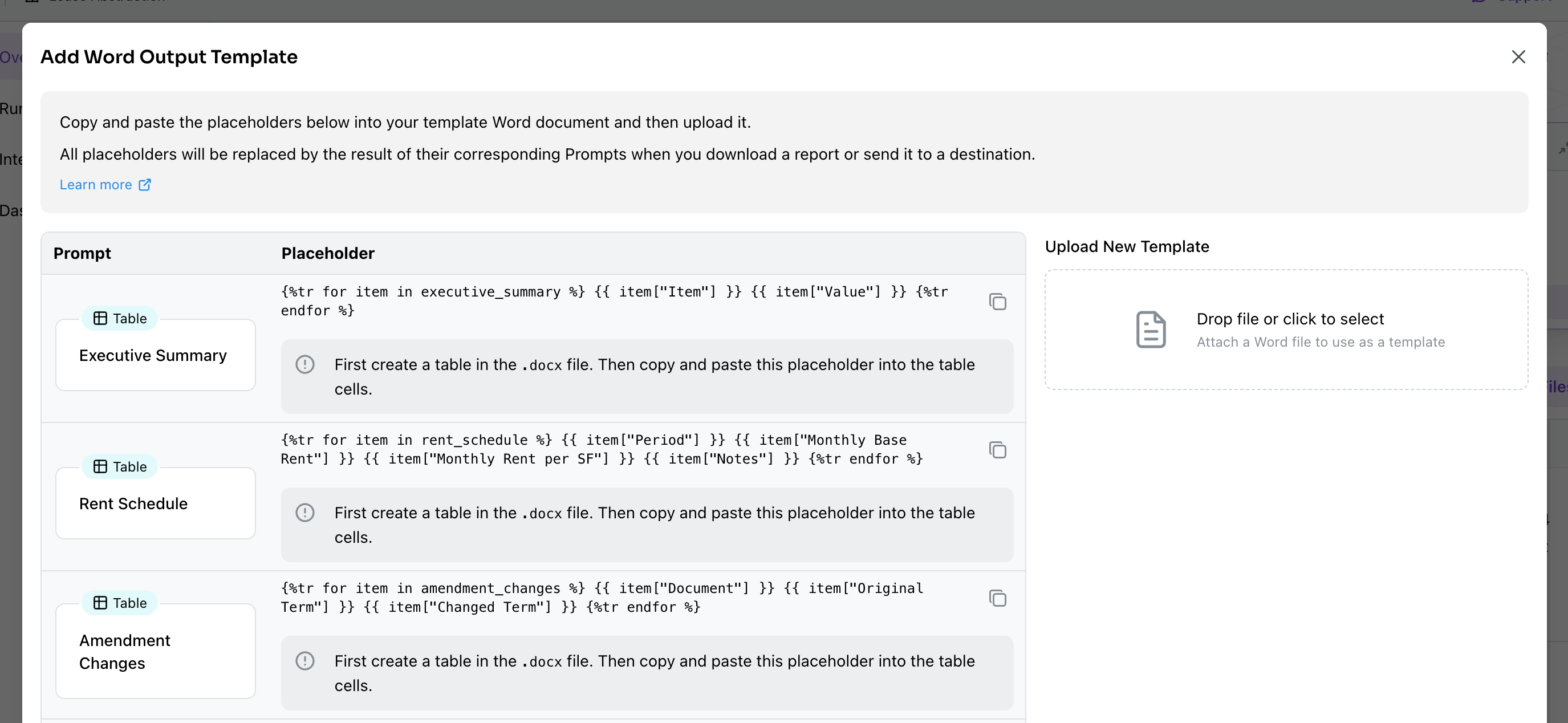
After selecting the type of template you want to use, a modal will open where you can upload a template file.
From this modal, you will see each Prompt defined for the Agent as well as their corresponding placeholder.
### Editing Your Template
If you are using Excel or Word for desktop on either PC or Mac, Kolena provides Add-ins for editing your templates:
* [Kolena AI Agents for Excel](/templated-outputs/excel-templates#kolena-ai-agents-for-excel)
* [Kolena AI Agents for Word](/templated-outputs/word-templates#kolena-ai-agents-for-word)
Otherwise, open your template document in a seperate window using Word, Excel, or some other document editor.
Copy and paste the appropriate placeholders into your template document.
If necessary, define new [Prompts](/prompts) to populate your template.
Each new prompt will have an associated placeholder.
Four types of templates are supported:
* Word
* CSV
* Excel
* Excel Multple Runs
Excel Multiple Runs templates can use values from more than one Run in the same Output Template, while the other types use values from a single Run.
After selecting the type of template you want to use, a modal will open where you can upload a template file.
From this modal, you will see each Prompt defined for the Agent as well as their corresponding placeholder.
### Editing Your Template
If you are using Excel or Word for desktop on either PC or Mac, Kolena provides Add-ins for editing your templates:
* [Kolena AI Agents for Excel](/templated-outputs/excel-templates#kolena-ai-agents-for-excel)
* [Kolena AI Agents for Word](/templated-outputs/word-templates#kolena-ai-agents-for-word)
Otherwise, open your template document in a seperate window using Word, Excel, or some other document editor.
Copy and paste the appropriate placeholders into your template document.
If necessary, define new [Prompts](/prompts) to populate your template.
Each new prompt will have an associated placeholder.
 Kolena will preserve the font and format of the placeholders in Word and Excel documents.
For example, if your placeholder in a Word document is **`【Company Name】`** in bolded, size 24, Times New Roman and your Agent Run has `Company Name` extracted as `Kolena Inc`, the placeholder will be replaced with **Kolena Inc**, also in bolded, size 24, Times New Roman.
All elements in the template files that are not in placeholders (e.g. text, images, and borders) will be preserved.
### Uploading the Template
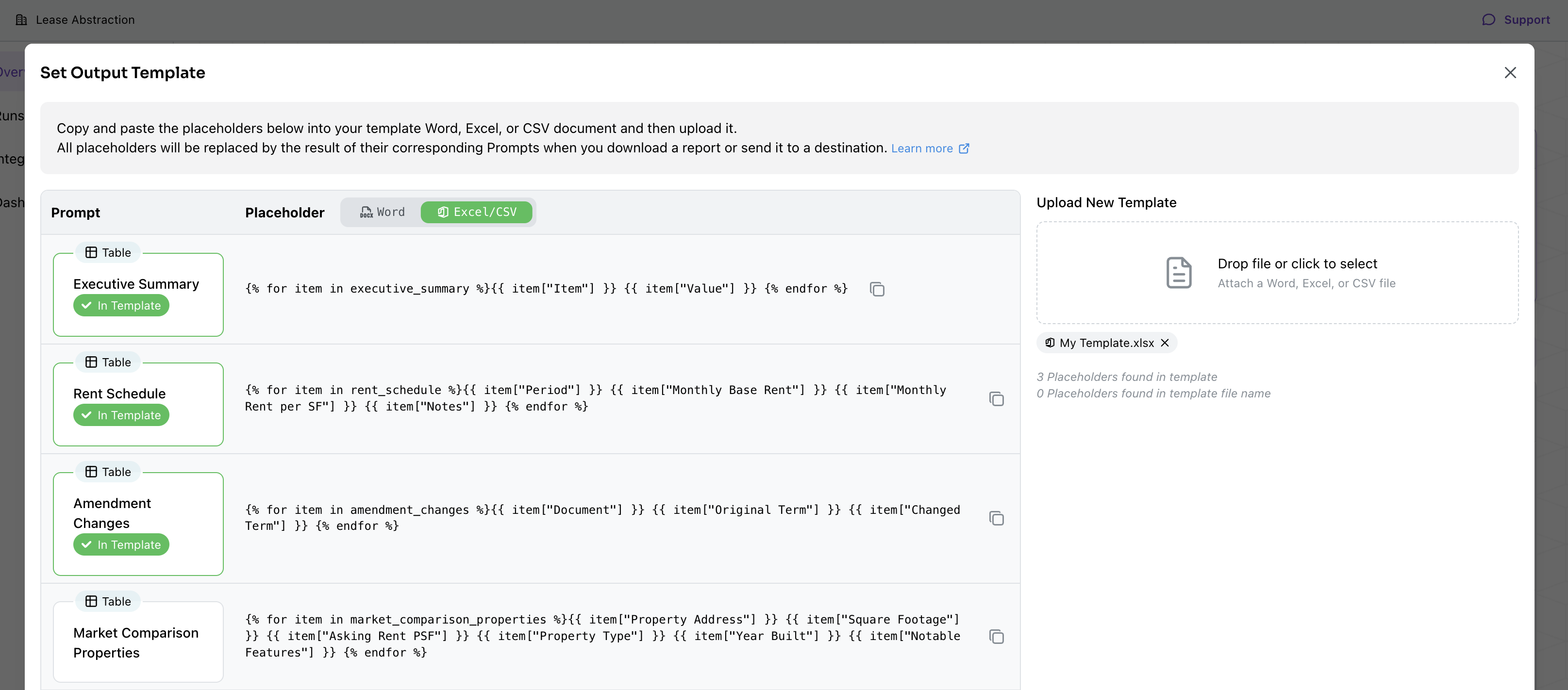
Once you have inserted the appropriate placeholders into your document, save it and upload it in the "Set Output Template" modal.
When uploading, Kolena will indicate which placeholders are detected in the document.
Click "Submit" to save the template to the Agent.
Kolena will preserve the font and format of the placeholders in Word and Excel documents.
For example, if your placeholder in a Word document is **`【Company Name】`** in bolded, size 24, Times New Roman and your Agent Run has `Company Name` extracted as `Kolena Inc`, the placeholder will be replaced with **Kolena Inc**, also in bolded, size 24, Times New Roman.
All elements in the template files that are not in placeholders (e.g. text, images, and borders) will be preserved.
### Uploading the Template
Once you have inserted the appropriate placeholders into your document, save it and upload it in the "Set Output Template" modal.
When uploading, Kolena will indicate which placeholders are detected in the document.
Click "Submit" to save the template to the Agent.
 ### Templating the Output File Name
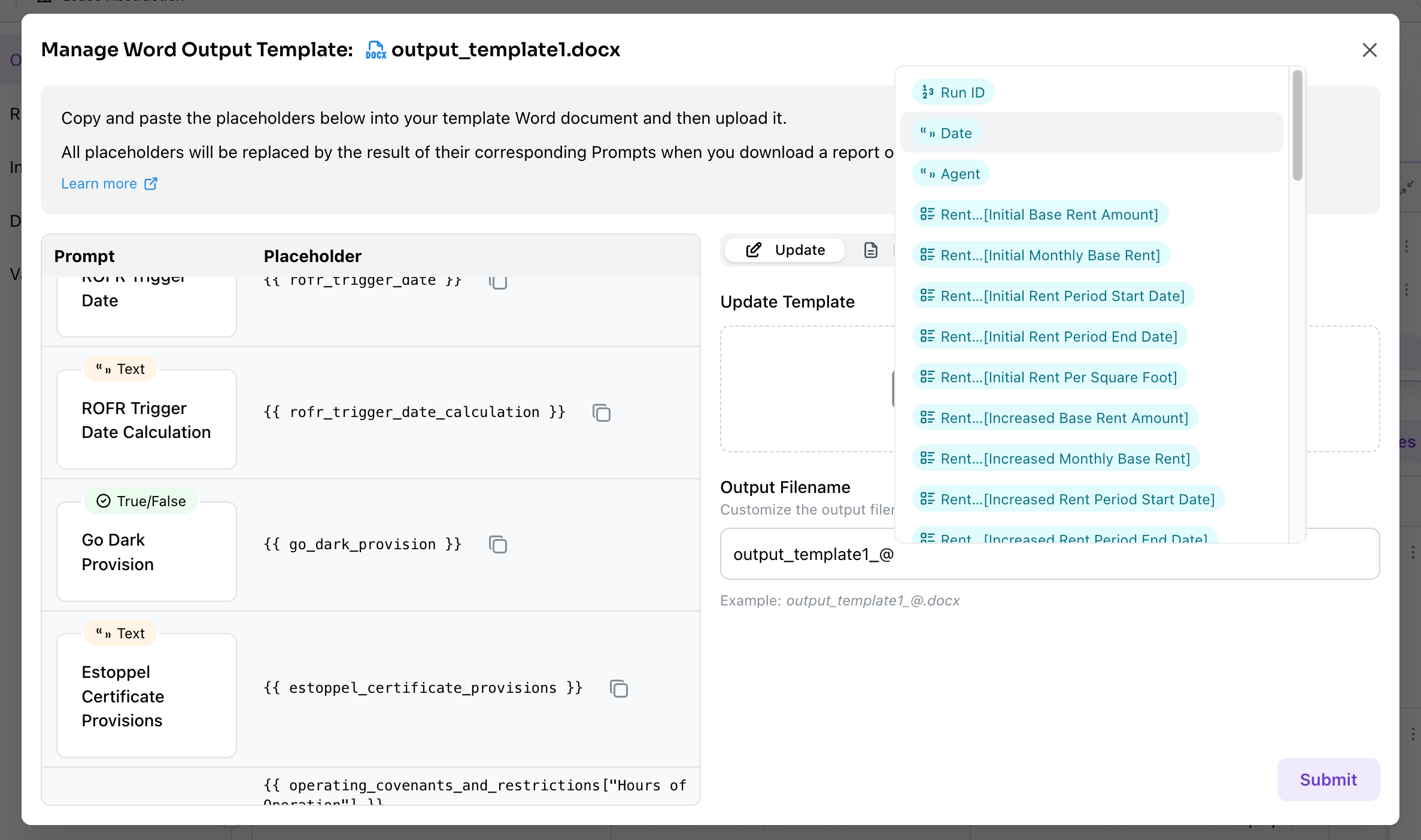
Placeholders can also be used to populate the output file name. After uploading your template file, you can insert placeholders into the output filename in the "Manage Template" modal:
1. From the Agent homepage, click on the template in the "Output" section:
### Templating the Output File Name
Placeholders can also be used to populate the output file name. After uploading your template file, you can insert placeholders into the output filename in the "Manage Template" modal:
1. From the Agent homepage, click on the template in the "Output" section:
 2. The "Manage Template" modal will open. Click in the "Output Filename" input, and type a `@` to bring up a list of placeholders. Click on the desired placeholder to insert it into the filename.
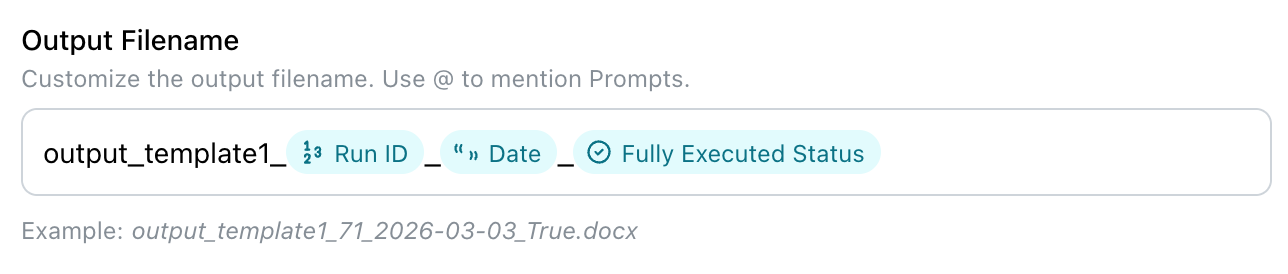
 3. As you insert placeholders, the application will show a preview of what the output filename would look like for your latest run.
 ## Using the Template
Once you've uploaded a template to the Agent, you can use it for direct downloads and for automated Integrations to Destinations.
### Downloading the Output
You can directly download the Templated Output for a given Agent Run:
1. Navigate to the desired Agent Run
2. Click into the "Report" tab
3. Click on the (Download) icon
4. Select your desired template and format from the download menu
Output Templates may be downloaded as either an editable `docx` / `xlsx`, or a generated `pdf`.
## Using the Template
Once you've uploaded a template to the Agent, you can use it for direct downloads and for automated Integrations to Destinations.
### Downloading the Output
You can directly download the Templated Output for a given Agent Run:
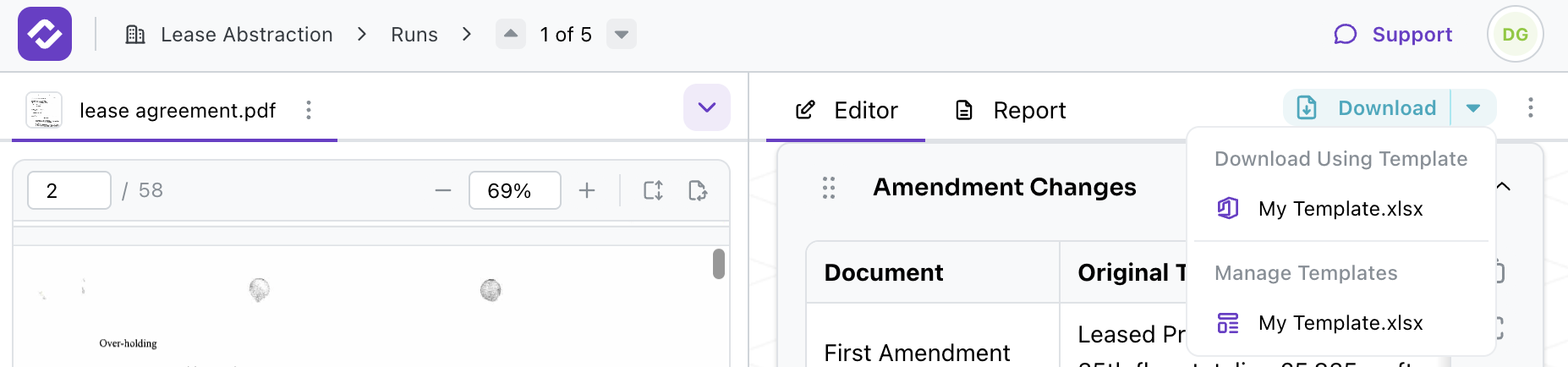
1. Navigate to the desired Agent Run
2. Click into the "Report" tab
3. Click on the (Download) icon
4. Select your desired template and format from the download menu
Output Templates may be downloaded as either an editable `docx` / `xlsx`, or a generated `pdf`.
 ### Configuring a Destination
You can also specify a template for export with a [Destination](/connections):
1. From the Agent's main page, click on "Add Destination" in the "Output" box, or edit an existing Destination
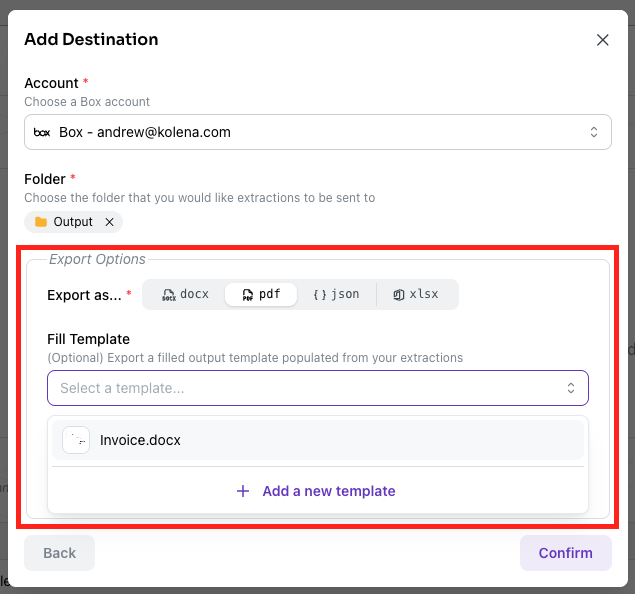
2. Under the "Export Options" section for the Destination, select your desired Ouput Template as the "Fill Template".
### Configuring a Destination
You can also specify a template for export with a [Destination](/connections):
1. From the Agent's main page, click on "Add Destination" in the "Output" box, or edit an existing Destination
2. Under the "Export Options" section for the Destination, select your desired Ouput Template as the "Fill Template".
 ## Template Structure Guides
To learn more about how templates are structured and how to use placeholders, visit the page for the appropriate template type below:
* [Word Output Templates](/templated-outputs/word-templates)
* [Excel Output Templates (Single-Run or Multiple-Run)](/templated-outputs/excel-templates)
* [CSV Output Templates](/templated-outputs/csv-jinja-templates)
## Template Structure Guides
To learn more about how templates are structured and how to use placeholders, visit the page for the appropriate template type below:
* [Word Output Templates](/templated-outputs/word-templates)
* [Excel Output Templates (Single-Run or Multiple-Run)](/templated-outputs/excel-templates)
* [CSV Output Templates](/templated-outputs/csv-jinja-templates)