
Overview
Credit limits allow you to set spending limits on credit usage at both the Organization and Workspace levels. When a credit limit is reached, Kolena will automatically prevent further credit consumption to help you stay within budget.Credit limits are an optional feature available to Organizations on credit-based pricing plans.
All limits are set on a monthly-basis.
Usage resets back to zero at the start of each calendar month.
How Credit Limits Work
Credit limits enforce spending limits by tracking cumulative credit usage and comparing it against configured thresholds:- Organization-level limits: limit total overage credits across the entire Organization
- Workspace-level limits: limit total credits (monthly quota + overage) for specific Workspaces
- New Prompts and Runs that would exceed the limit are prevented from starting
- Existing Runs continue to completion
- Administrators receive email notifications at 90% and 100% of the limit
Setting Up Credit Limits
Organization-Level Overage Limit
The Organization-level limit limits how many overage credits can be consumed beyond your monthly quota. To set an Organization-level overage limit:- Click “Manage Organization” from your user profile or navigate to your Organization page
- Click the “Usage” button
- Go to the Usage Limits section
- Click the Configure Overage Limit button to set the Organization-level overage limit
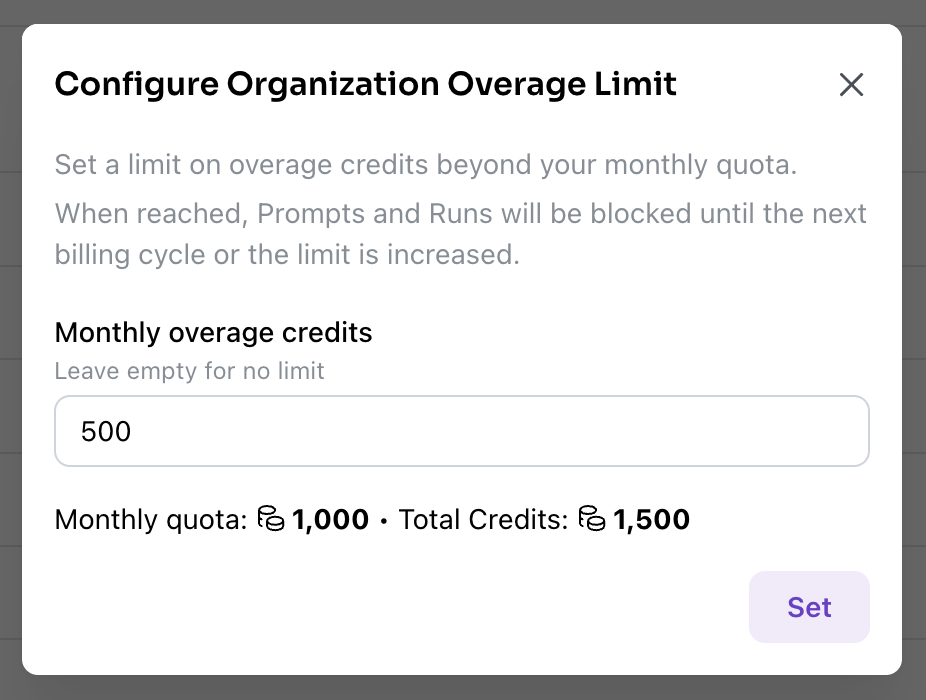
- You can use up to 15,000 total credits per month (10,000 quota + 5,000 overage)
- After 15,000 credits, new Prompts and Runs will be blocked until the next month
- Prepaid credits are consumed but not counted toward the overage limit
Workspace-Level Limit
Workspace-level limits limit the total credits (monthly + overage) that can be consumed by a specific Workspace. To set a workspace-level limit:- Click “Manage Organization” from your user profile or navigate to your Organization page
- Click the “Usage” button
- Go to the Usage Limits section
- Click the Configure Limits button to set the Workspace-level limit
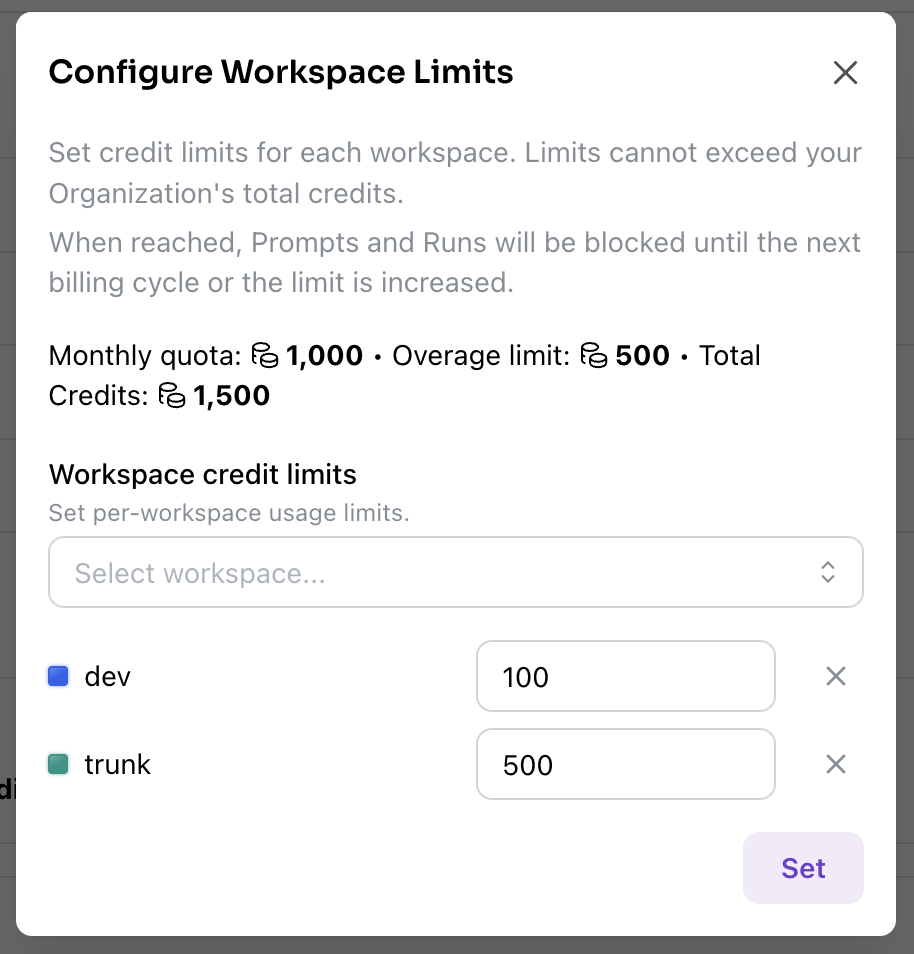
- The Workspace can consume up to 2,000 credits from monthly quota and overage combined
- After 2,000 credits, new Prompts and Runs in that Workspace will be blocked
- Other Workspaces remain unaffected
Notifications
Administrators receive email alerts when credit usage approaches or exceeds limits:Organization-Level Alerts
- 90% threshold: Email sent when overage usage reaches 90% of the limit
- 100% threshold: Email sent when overage usage reaches or exceeds 100% of the limit
Workspace-Level Alerts
- 90% threshold: Email sent when Workspace usage reaches 90% of the limit
- 100% threshold: Email sent when Workspace usage reaches or exceeds 100% of the limit
Notifications are sent once per threshold per month. If usage fluctuates below and back above a threshold, a new notification will not be sent until the next month.
Monitoring Credit Usage
To monitor your credit usage and limits:- Visit your Organization page
- View the Usage section to see:
- Current month’s credit consumption
- Monthly quota and remaining credits
- Overage credits used (if applicable)
- Progress toward any configured limits

- Individual Agent
- Individual Run
- Workspace
- Time period
Responding to Limit Alerts
When you receive a 90% threshold alert:- Review current usage patterns in your Organization page
- Consider increasing the limit if usage is expected to continue
- Investigate and optimize prompts or workflows if usage is higher than expected
- Prompts and Runs cannot proceed until the limit is raised or the next billing period begins
- Contact your Organization administrator to adjust limits if needed