
The Agent Worksheet
Excel Output Templates contain a special Agent Worksheet titled “Kolena Agent” that contains Agent outputs as Excel named ranges and structured references. Each Prompt in your Agent has an associated template placeholder, which can be used to refer to the corresponding output in the Agent Worksheet.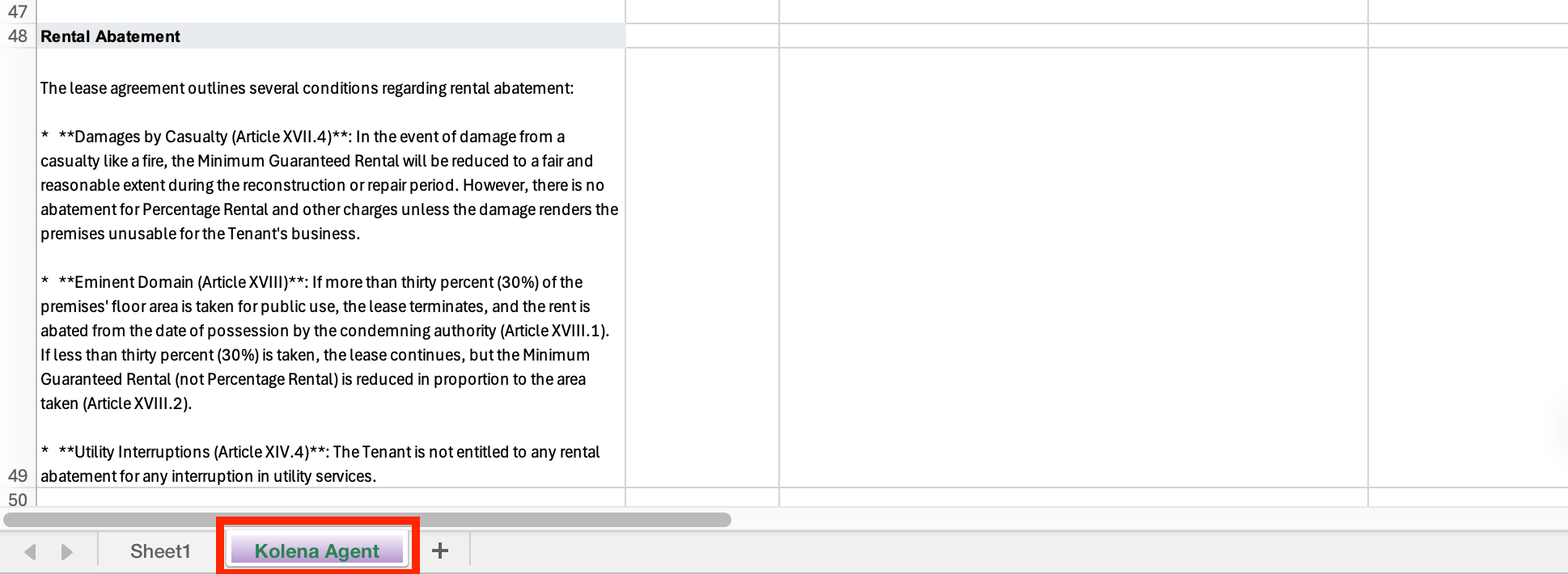
A single Excel cell can hold a maximum of 32,767 characters. An Agent output would be truncated if it exceeds this limit.
Single-Run Templates
In Single-Run Excel Output Templates:- Scalar outputs (Text, Number, True/False, Classification) are represented as named ranges
- Form and Table outputs are represented as structured references
Single-Run Scalar Outputs
For simple Text, Number, True/False, or Classification Prompts, use the Prompt’s template placeholder directly:customer_name, use:
Single-Run Form Outputs
For form Prompts (key-value pairs), reference specific fields using bracket notation:customer_info containing fields “Email” and “Phone”:
Single-Run Table Outputs
For Table Prompts, you can reference:- The entire table:
=placeholder_name - A specific column:
=placeholder_name[column_name]
transactions containing columns “Date” and “Amount”:
SUM, FILTER, or INDEX formulas).
Single-Run Reasoning and Citations
Reasoning and citations are stored in structured references:- Reasoning can be found in the
kolena_reasoningtable - Citations can be found in the
kolena_citationstable
property_address, you can reference the reasoning for this Prompt’s output with:
Multiple-Run Templates
In Multiple-Run Templates, all outputs are stored in structured references. Each Prompt has a corresponding table, and each table row has a “Run ID” column that indicates the Run associated with that row.Multiple-Run Scalar Outputs
Rows from scalar outputs (Text, Number, True/False, Classification) have a “Value” column that contains the output value for the Run associated with that row:- Each Run will have a single row in the table.
- Each row has a Value column with the value for that row
- Each row has also has a Reasoning column containing reasoning, and a Citations containing citations
customer_age with the following structure:
To get the list of customer ages, use this formula:
Multiple-Run Form Outputs
Rows from form outputs have columns corresponding to the Prompt’s fields:- Each Run will have a single row in the table
- Each row has a column for each Prompt field
- Each row has also has a Reasoning column containing reasoning, and a Citations containing citations
To get the list of European tax rates, use the formula:
Multiple-Run Table Outputs
Rows from table outputs have columns corresponding to the Prompt’s columns:- Each Run can have multiple rows in the table (one row for each row in the table output)
- Each row has a column for each Prompt column
- Each row has a Run ID column that indicates the Run associated with that row
- Each row also has a Reasoning column containing reasoning, and a Citations column containing citations. Only the first row for each Run ID will have these columns populated.
transactions, and columns “Date”, “Amount”, and “Description”, you will have an Excel table named transactions with the following structure:
To get all transactions from Run 1, you could use a formula like:
Multiple-Run Files
Multiple-run templates have an additional table namedkolena_runs that keeps track of the input files associated with each run. It has two columns:
- Run ID: The Run ID for the row (the same ID used in other Prompt output tables)
- Files: A list of the filenames of the input files associated with the run, separated by commas.
Kolena AI Agents for Excel
The Kolena AI Agents for Excel add-in lets you create and edit Excel Output Templates directly in Microsoft Excel. You can turn any workbook into an Output Template, reference Agent outputs with Excel formulas, preview how the template behaves with different Agent runs, and save or load templates.Requirements
Kolena AI Agents for Excel is supported in the following versions of Excel:- Excel on Windows (Microsoft 365)
- Excel 2019 or later on Mac
- Excel on Mac (Microsoft 365)
The add-in uses the same security model as the rest of the platform: the same
authentication, the same permission checks, and full audit logging for every
action.
Getting Started
Installing the Add-in
Sign into Office 365
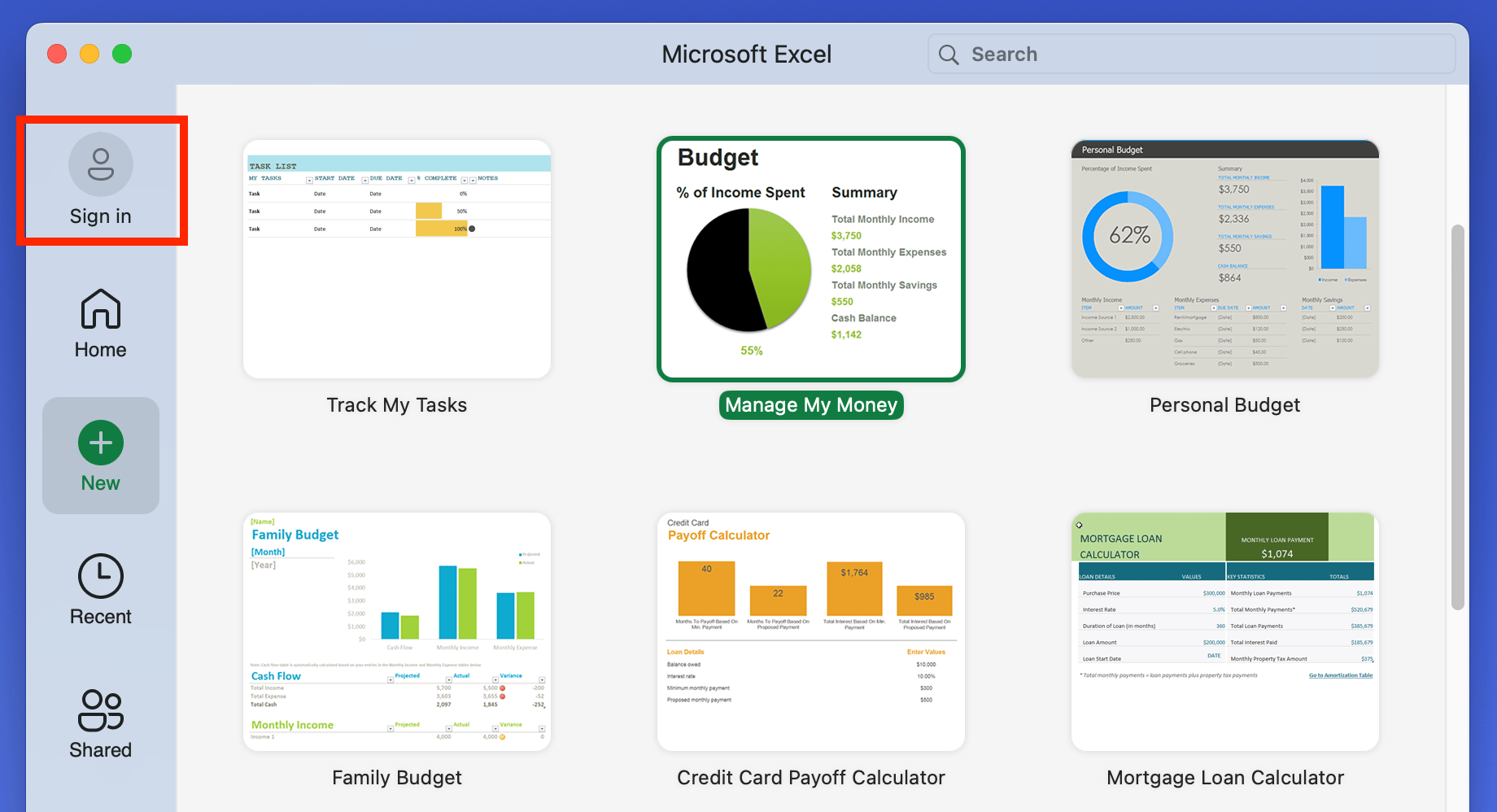
Before installing the add-in, make sure that you are signed-in to Excel:- Open Excel, and open File > New From Template
- If you see a “Sign In” button in the upper-righthand corner, click this and follow the sign in process. If you see your username there already, you are already signed-in.
Install from Excel
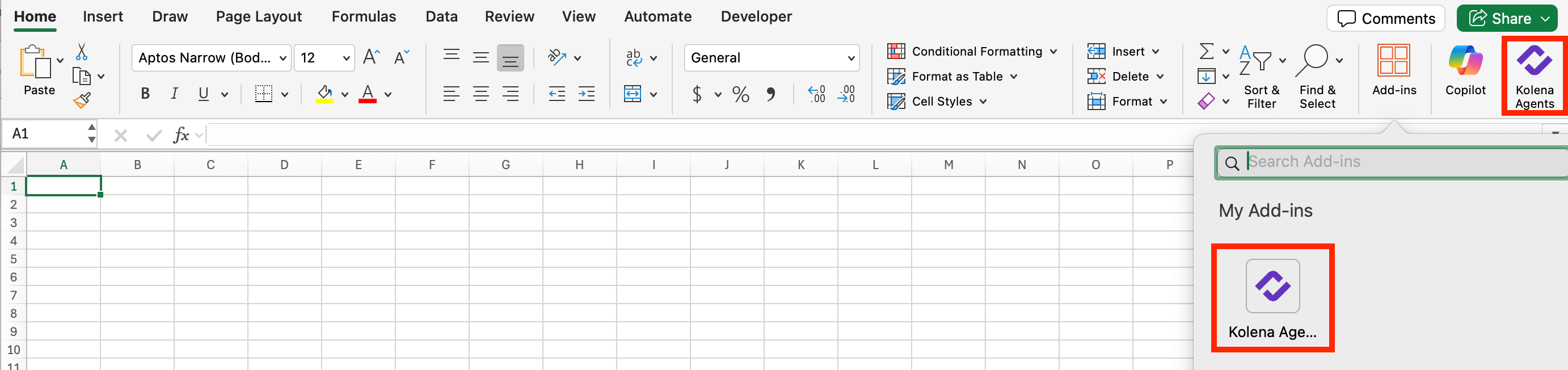
The simplest way to install the add-in is from within Excel, by searching the Microsoft Add-in Marketplace:- In Excel, on the Home ribbon navigate to Add-ins > More Add-ins
- Search for “Kolena AI Agents for Excel” and install it
- After installing, the add-in should appear in your Home ribbon, or in the list of installed add-ins found by clicking Home > Add-ins
Install from the Web
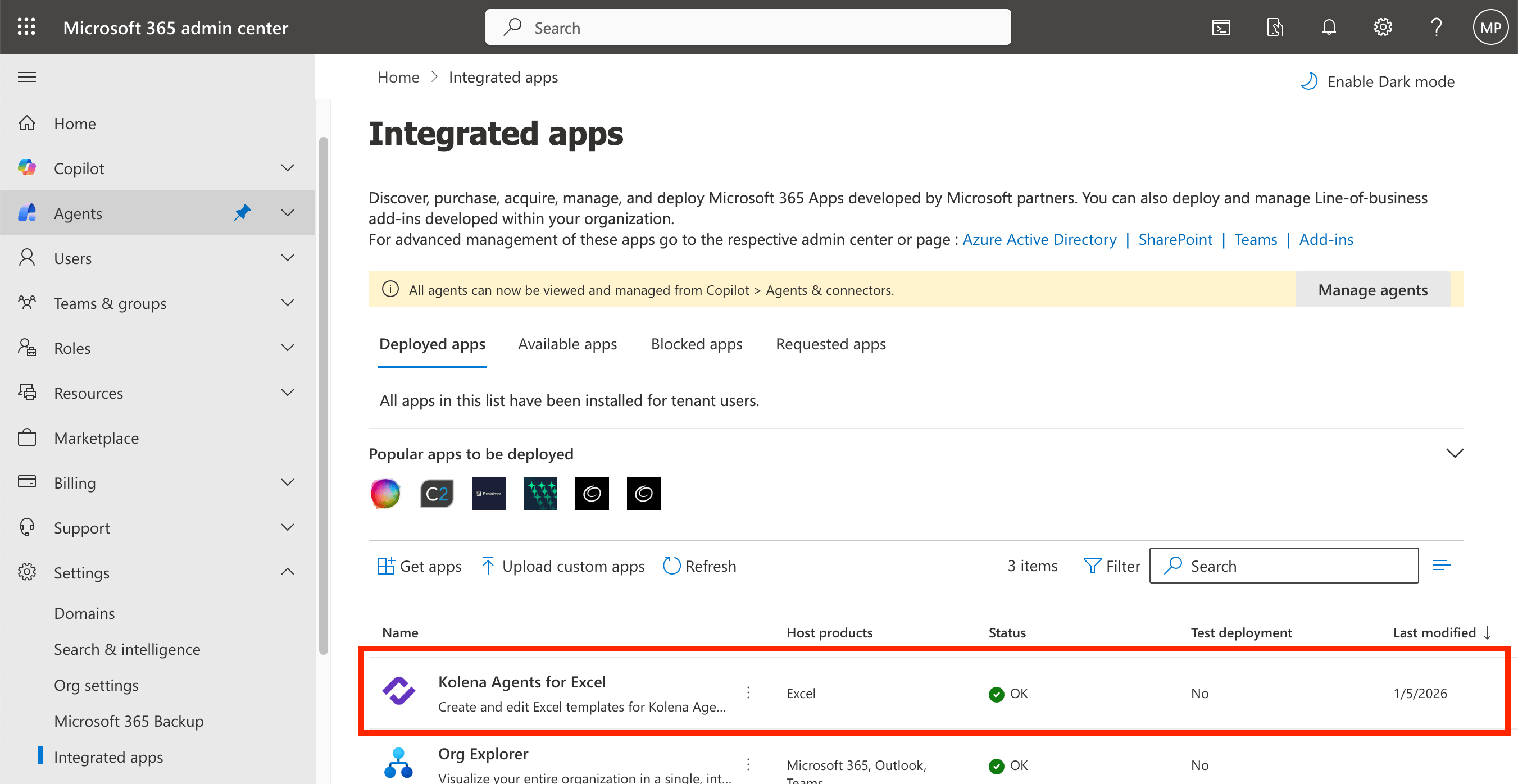
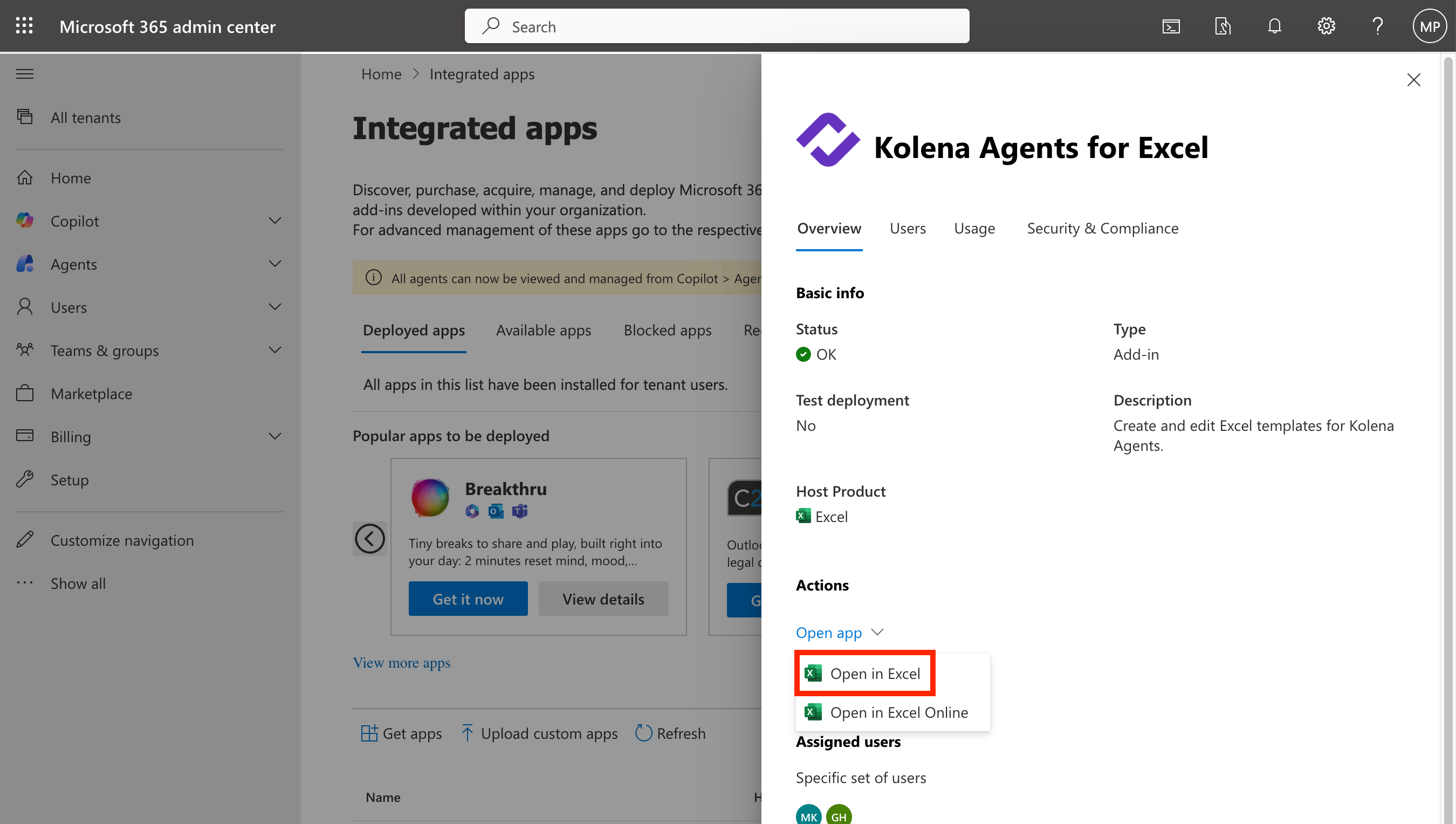
You can also install from the web by following this link to add the add-in to your Office 365 account: Kolena AI Agents for Excel- After installing the add-in to your Office 365 account, you should be taken to the app page for Kolena AI Agents for Excel. If not, you can access this page by visiting Settings (sidebar) > Integrated apps > Kolena AI Agents for Excel
- Click the link from the Microsoft 365 Admin Center to open the add-in in Excel: Actions > Open app > Open in Excel
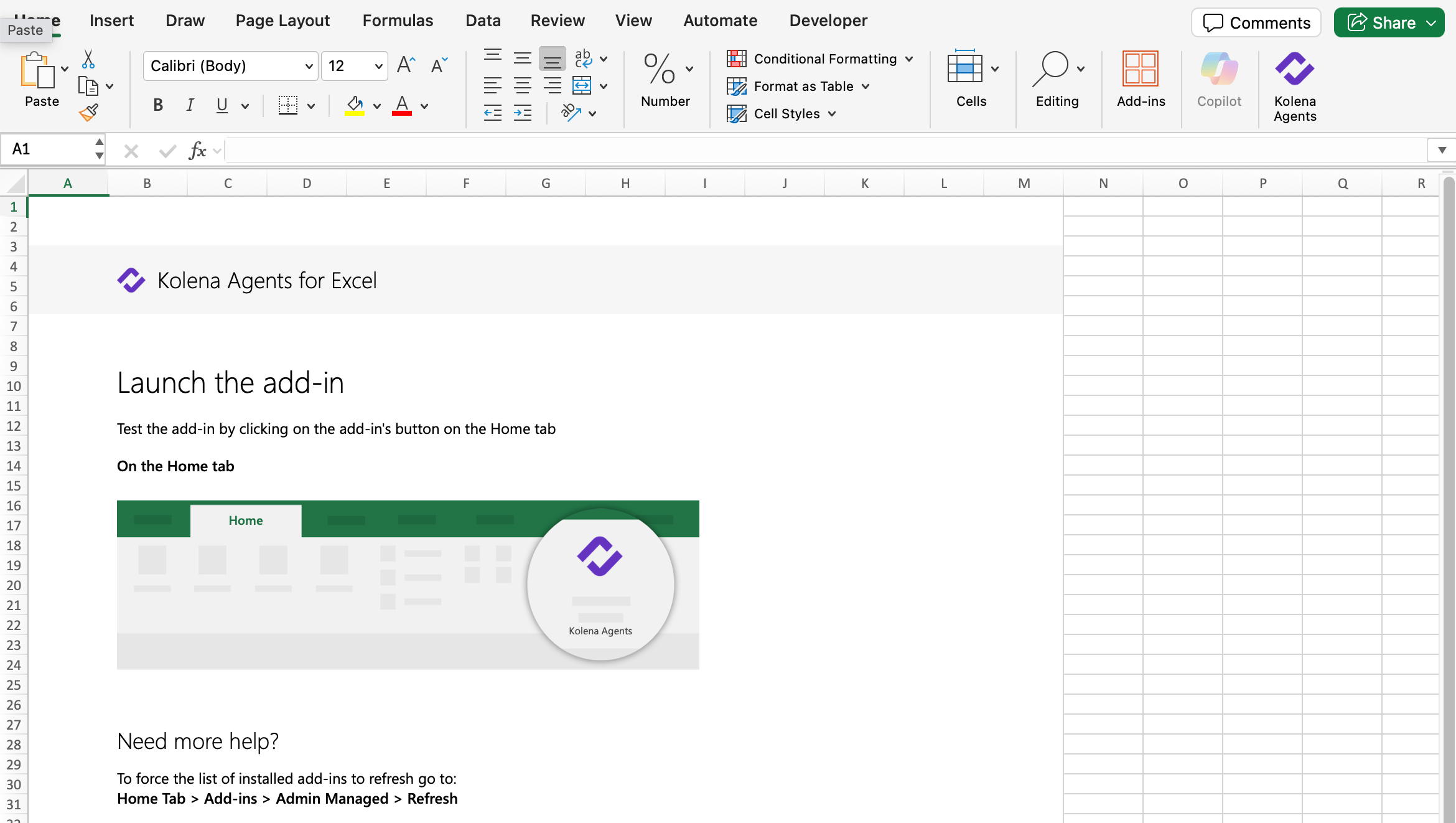
- After installing, you should be presented with a worksheet prompting you to open the add-in:
Opening the Add-in
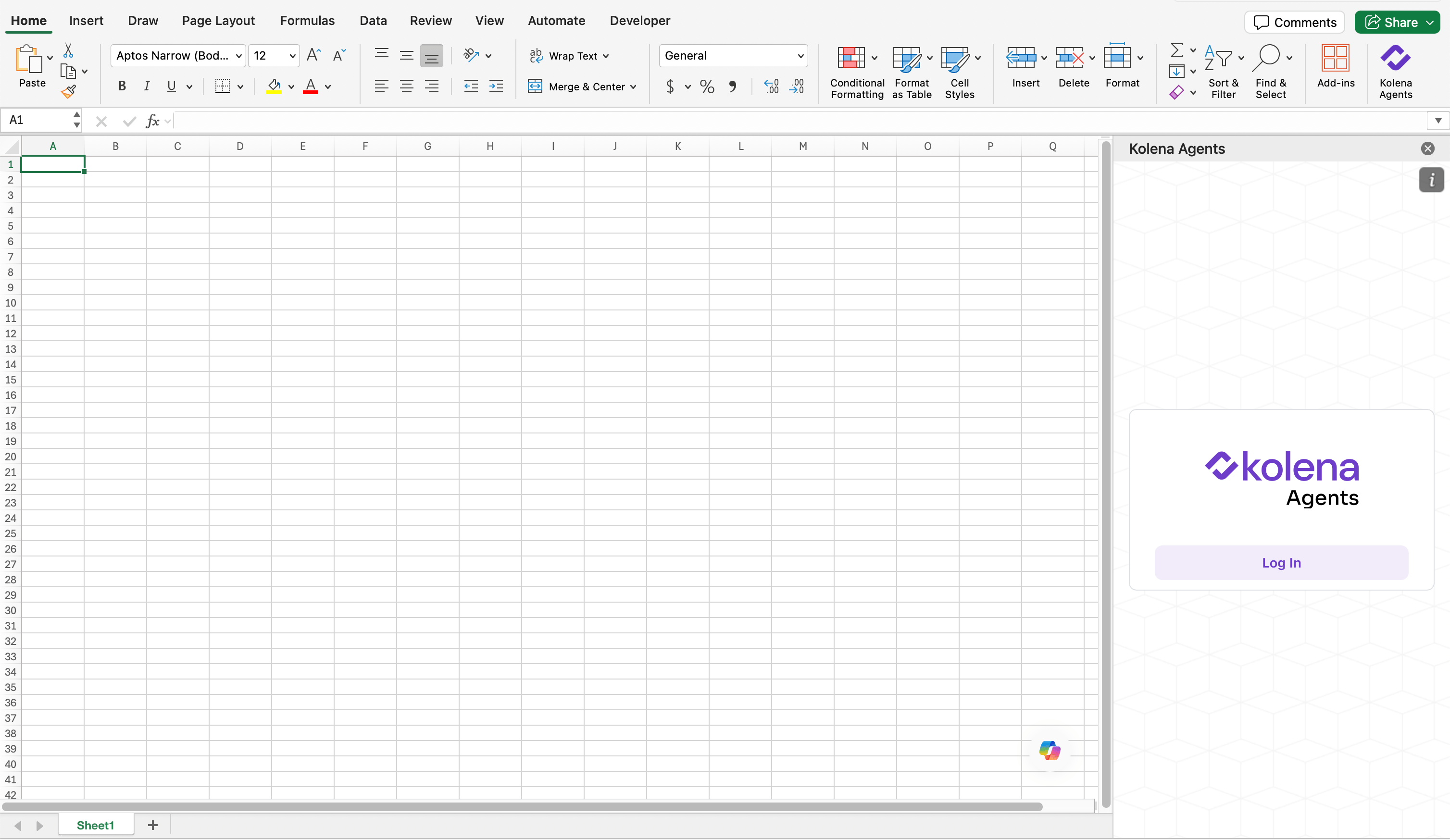
- Once installed, click the Home > Kolena Agents or Home > Add-ins > Kolena Agents to open the add-in pane
- When you open the add-in, you’ll be presented with the login screen
- Click “Log In” to open the authentication dialog window. Follow the normal process to log in with your Kolena credentials
Setting Up Your Template
Creating a New Template
To create a new template, we first need to associate it with the correct Agent:- To begin, open an existing workbook or create a blank one if you’re starting from scratch
- Open the Kolena Agents add-in and log in
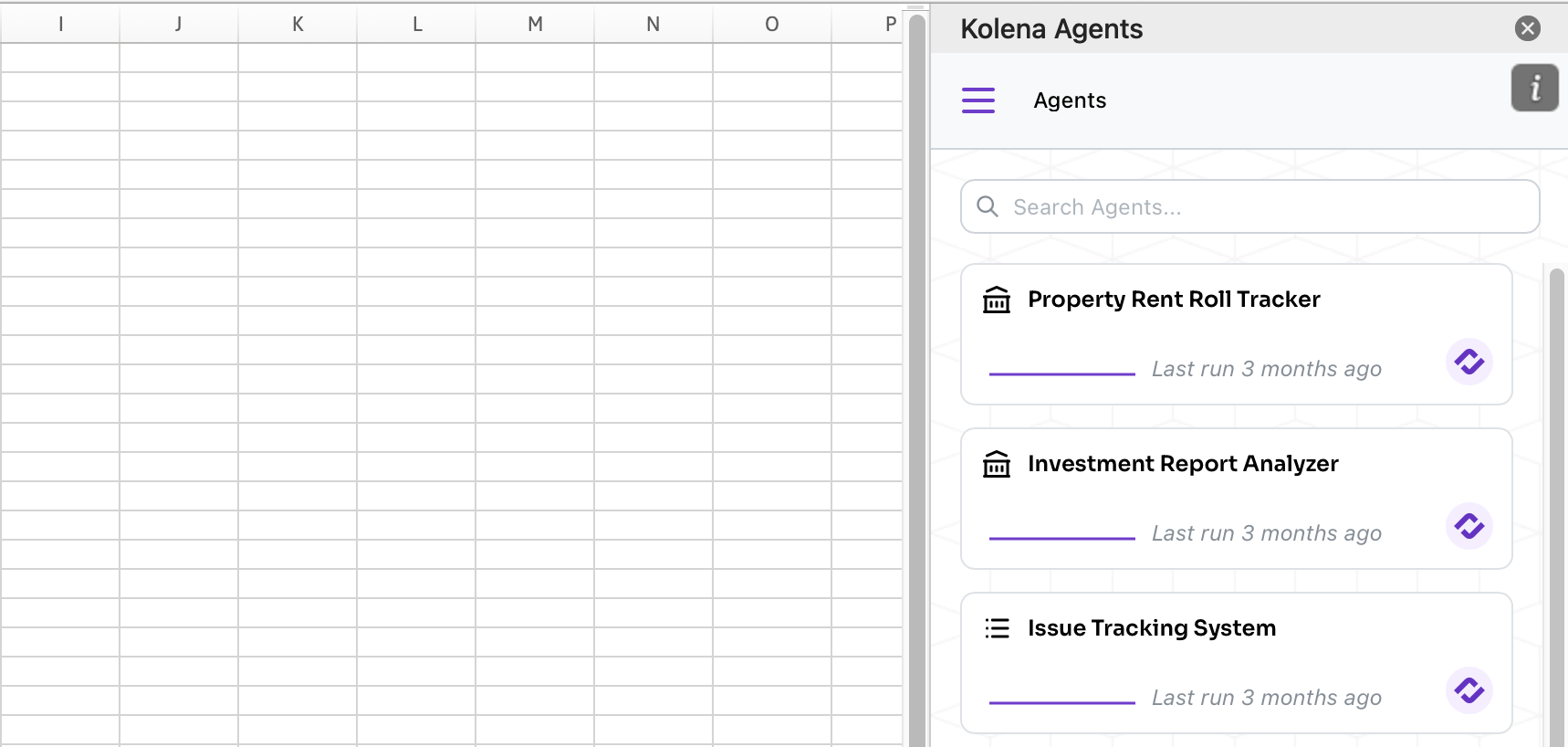
- You will see a list of the Agents available in your organization. Click the desired Agent. You can use the search bar to help you locate the correct Agent
- If your Agent does not have any existing templates saved, you will be prompted to enter a name for your new template. Enter a filename and click Create
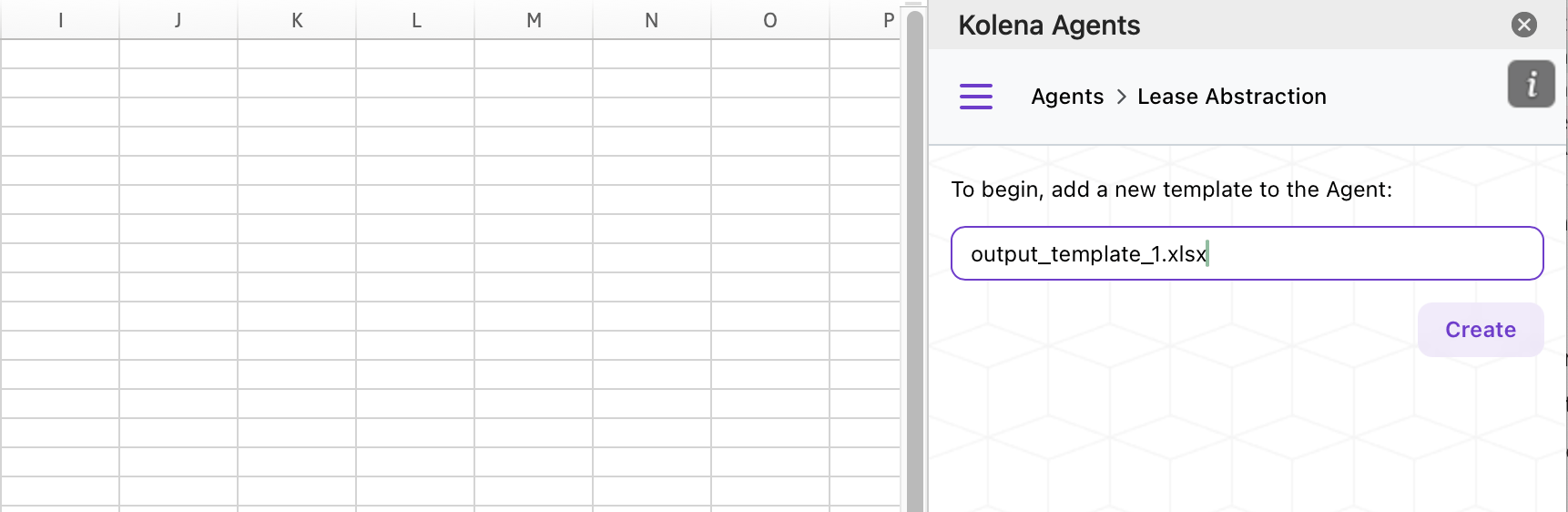
You can use filename
placeholders when
choosing a filename in order to template the output filename.
- If your Agent already has templates saved, you will be prompted to selected a template. Click Add New at the bottom of the list, then enter a filename and click Create
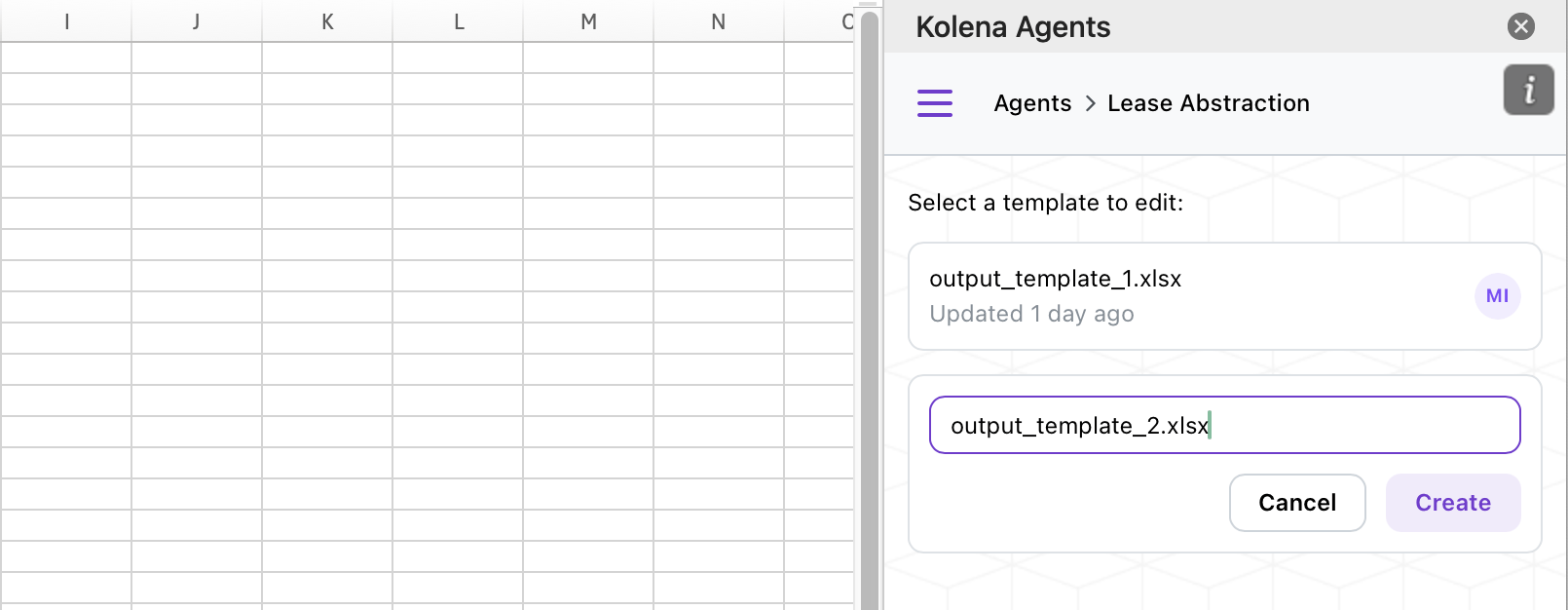
- The current workbook will be saved as a template to your Agent. You can now begin editing.
Working with an Existing Agent Template
If your Agent already has a template saved, the first step is to open the template’s Excel workbook. If you don’t already have this workbook available, you can retrieve it from Kolena in two ways:1. Download from the Kolena Agents Excel Add-in
- Open the add-in from any Excel workbook
- If the add-in opens to the template editor interface (because your Workbook is already associated with an Agent template), use the breadcrumbs at the top of the app to navigate back to the “Agents” screen
- Select the Agent whose template you want to load
- On the template selection screen, select the template you want to load
- When prompted to load the template from the server, select “Load template contents from server”
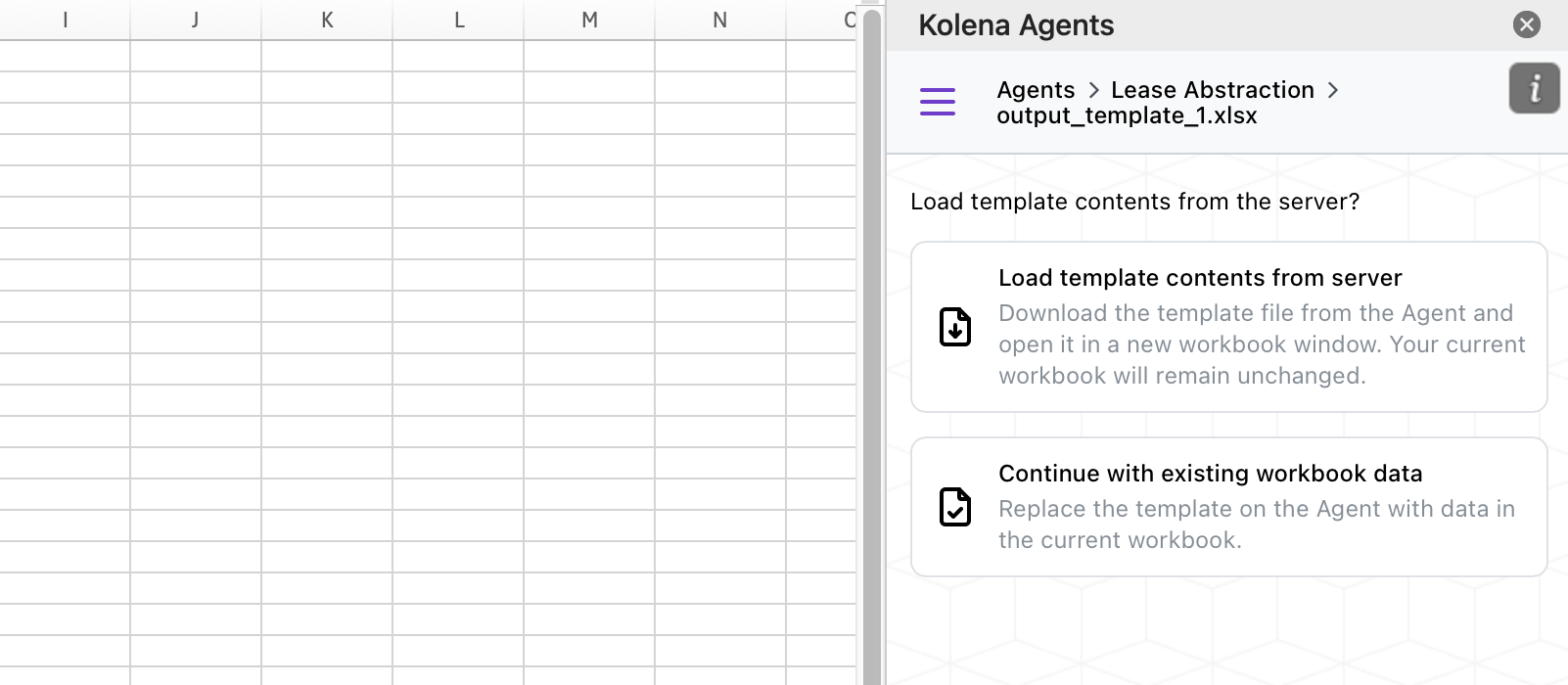
- The template will open in a new Excel window. Open the add-in in the new window to begin editing
2. Download from the Kolena Agents Web Application
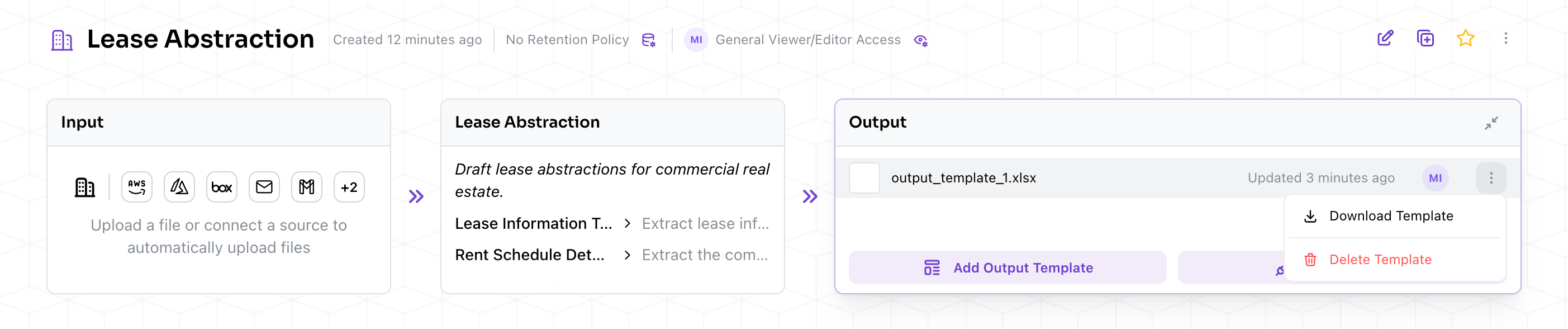
- From your Agent’s main page, click the “Output” node in the Workflow graph
- Click the menu dots next to the template you would like to download, and select Download Template
Editing Your Template
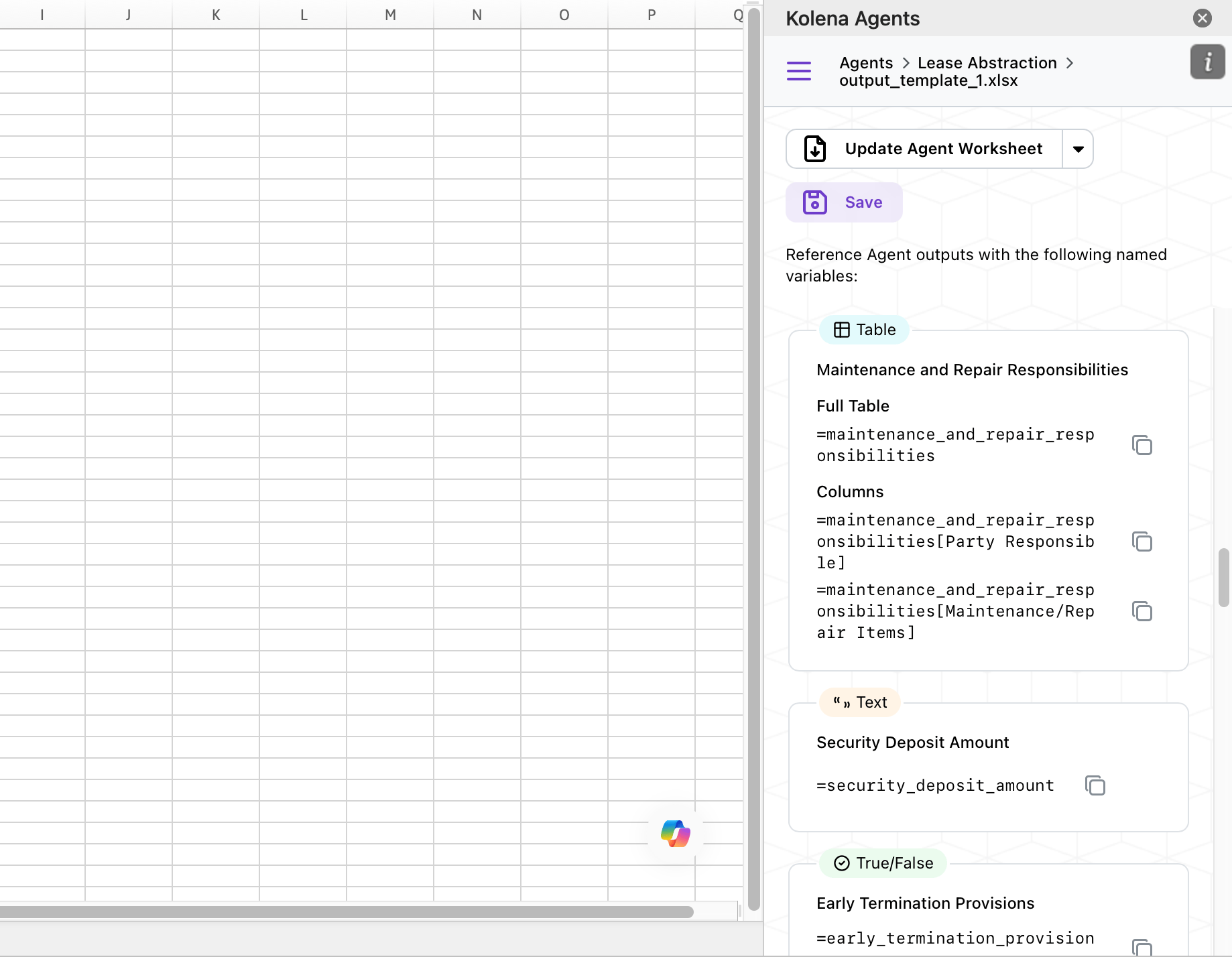
- Breadcrumb navigation showing your current Agent and template
- Update Agent Worksheet button to preview how templated output will look with different Agent runs
- Save button to save your changes back to the Agent
- Placeholder list showing all available Agent outputs you can reference
Previewing Templates
Updating the Agent Worksheet
You can preview how templated output will look with different Agent runs:- Click Update Agent Worksheet in the template editor
- The “Kolena Agent” worksheet will be updated with data from the selected run
- Your template formulas will automatically recalculate with the new data
Selecting Different Runs
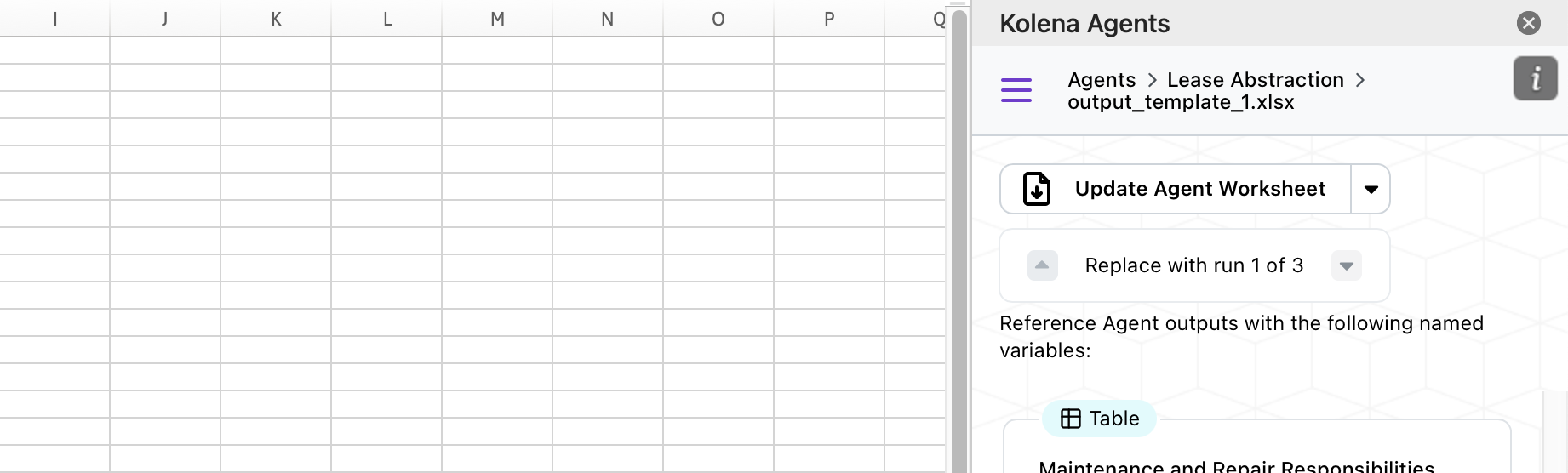
To preview with a different Agent run:- Click the dropdown arrow next to the Update Agent Worksheet button
- Use the up and down arrow buttons to navigate between runs
- Click Update Agent Worksheet to update the template with the selected run’s data
- Test your template with different data sets
- Verify formulas work correctly across various scenarios
- Ensure formatting looks good with different data volumes
Saving Templates
Saving Your Changes
When you’re ready to save your template:- Click the Save button in the template editor
- The current workbook will be uploaded and replace the template on the Agent
- A checkmark will appear briefly to confirm the save was successful
- Direct downloads from Agent runs
- Automated export to connected Integrations
Best Practices
- Save frequently while editing to avoid losing work
- Preview with multiple runs before saving to ensure your template works with different data
- Test formulas with edge cases (empty data, long text, etc.)