
- Input: documents coming into the Agent
- Output: results going out of the Agent
Configuring Integrations
Integrations are configured for each Agent from the Workflow graph on the main Agent page.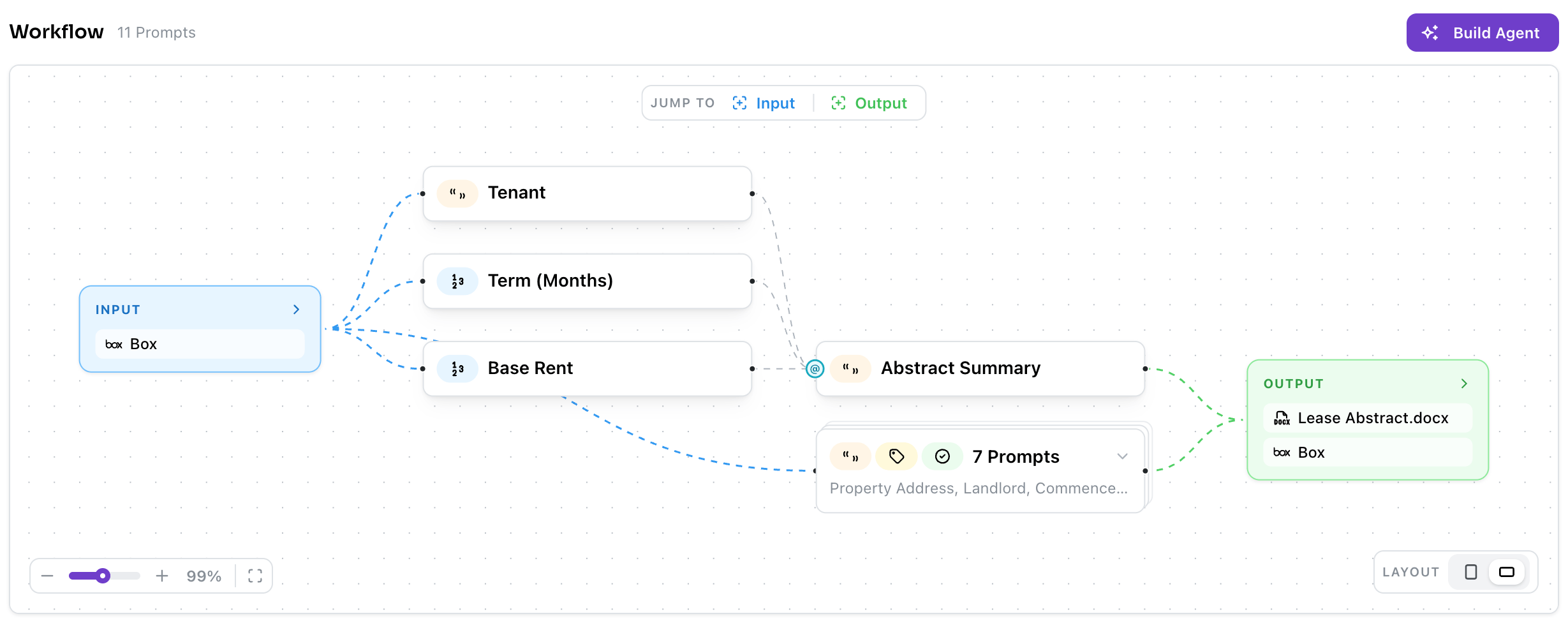
- From the Input node, click “Upload Files” to add documents yourself, or “Import from Integration” to bring them in automatically.
- From the Output node, click “Add Output Template” to shape the results, or “Send to Integration” to send them somewhere.
Input and Output Integrations
Input Integrations
If documents come in from a file storage system (e.g. Box, Google Drive, S3), the Agent will automatically watch it for new files. When new files are detected, the Agent will create new Runs to process those files. See Cloud Folder Sync for details on how folders are kept in sync. An Input Integration can read files in two different patterns:- Import Files Separately: Each file in the connected location is processed as a separate Run.
- Group Files Together: All files in a sub-folder pattern are processed together, where each sub-folder’s content as a single run by the Agent.
Output Integrations
If results go out to a file storage system (e.g. Box, Google Drive, S3), the Agent will write output files to it after each Run is completed. An Output Integration can write files in two different patterns:- Write to Directory: Each Run by the Agent produces output files sent to the Integration.
- Write to File: Each Run by the Agent produces a row in a single output spreadsheet.
You can send your results to an Integration as PDF, Word, Excel, CSV, JSON, or Powerpoints.
You can also use templates to customize the format of your output files.